Taxiom + QuickBooks: How to Get Client Documents Into QuickBooks Without Manual Entry
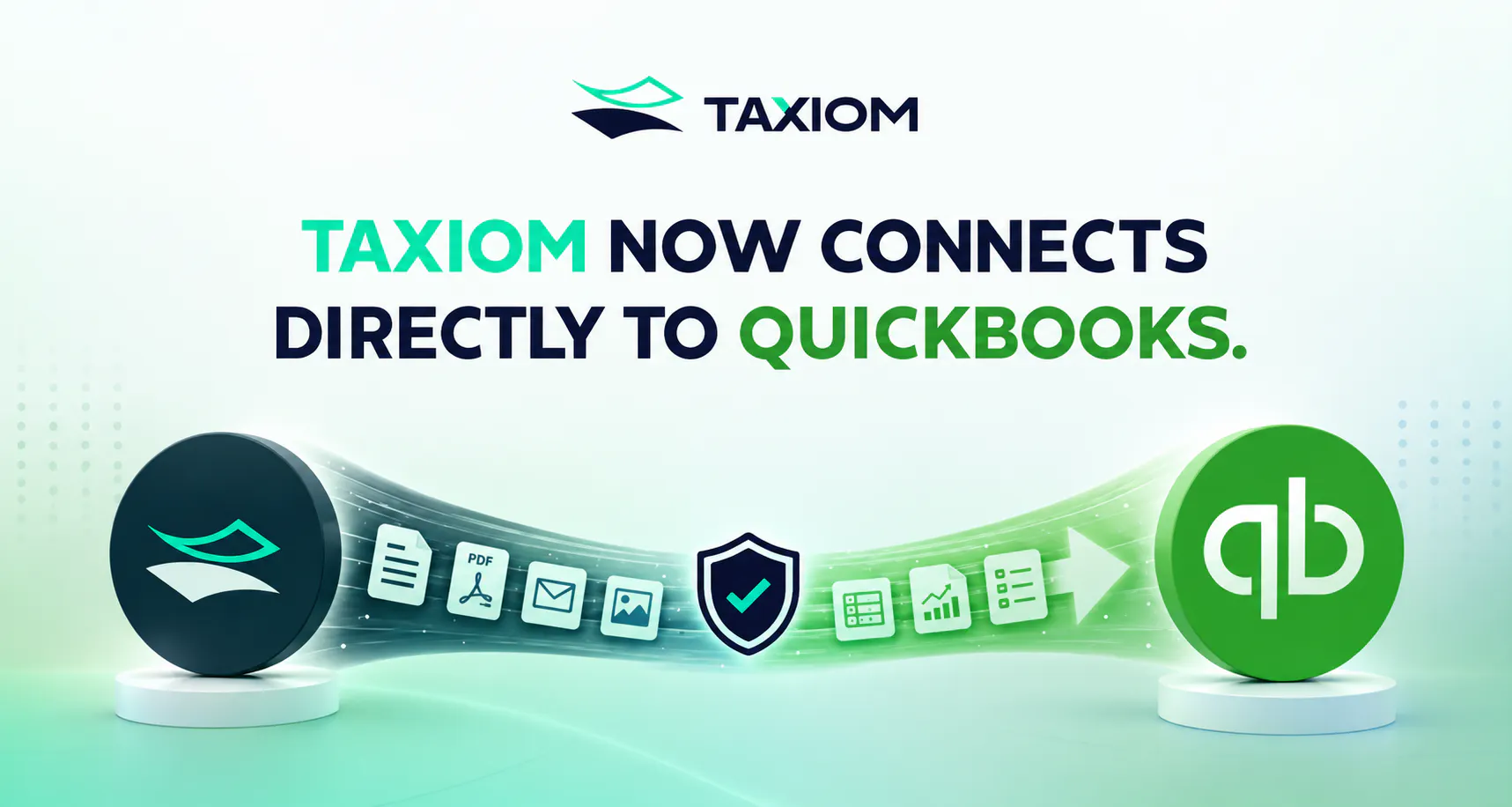
Getting client documents into QuickBooks is a structured data problem. QuickBooks needs clean, structured fields — date, supplier, amount, VAT code. Clients hand you PDFs, photographs of receipts, and scanned bank statements. Taxiom bridges that gap: upload any document, extract the structured data, export a QuickBooks-compatible CSV, and import directly. No manual typing. No reformatting.
This guide walks through every step of the QuickBooks document import workflow, the document types it handles, and how to set it up as a repeating client process under Making Tax Digital (MTD).
The QuickBooks Gap: Strong on Submission, Limited on Ingestion
QuickBooks Online is reliable for bookkeeping, VAT returns, and MTD-compliant submissions to Her Majesty's Revenue and Customs (HMRC). But it has a fundamental limitation: it does not read documents.
When a client emails a folder of supplier invoices, a batch of expense receipts, or a PDF bank statement, QuickBooks cannot extract the data from those files automatically. You either type the entries in manually or find a way to structure the data before it reaches QuickBooks.
That manual entry step is where time is lost. According to the 2025 Intuit QuickBooks Accountant Technology Survey, accountants dedicate 62% of their working time to compliance tasks including tax filings, financial statements, and bookkeeping. A significant share of that time is document processing — work that structured data extraction can eliminate.
Taxiom handles the document ingestion layer. QuickBooks handles the rest.
What QuickBooks Needs vs. What Clients Give You
QuickBooks CSV import expects clean, column-mapped data. For invoice imports, each row requires an invoice number, customer or supplier name, invoice date, due date, line item, amount, and VAT code. For sales receipt imports, mandatory fields include date, customer, and amount, with VAT codes mapped to QuickBooks codes before import begins.
What clients actually send:
- Photographed paper receipts
- Scanned supplier invoices in PDF
- Multi-page bank statements
- Email attachments in mixed formats (PDF, JPEG, DOCX)
None of these are ready for QuickBooks. Each document requires a human to locate the relevant fields, transcribe the values, format dates correctly, and assign VAT codes — before a single line can be imported.
Under Making Tax Digital, the rules require taxpayers to keep electronic records and submit quarterly reporting of receipts and expenses, with sole traders who are also landlords filing two updates each quarter. That means your volume of incoming client documents is increasing — and the per-document processing burden stays the same unless you change your workflow.
The answer is to extract structured data from documents automatically, before QuickBooks ever enters the picture.

Step-by-Step: The Taxiom → QuickBooks Workflow
This is the complete QuickBooks document import process using Taxiom as the document preparation layer.
Before you start: Ensure your QuickBooks Online account has the relevant customers, suppliers, and product/service items set up. QuickBooks requires that new products, customers, and suppliers be added before invoice import begins; each imported spreadsheet can contain up to 1,000 rows and a maximum of 100 invoices at a time.
Step 1: Upload Documents to Taxiom
Log in to your Taxiom workspace at taxiom.co. Upload client documents in any format — PDF, JPEG, PNG, scanned image, or email attachment. You can upload individually or in batches. Taxiom accepts mixed document types in a single upload session, so a folder containing invoices, receipts, and bank statements can be processed together.
Step 2: Extract Structured Data
Taxiom reads each document and extracts the structured fields: supplier name, invoice number, date, due date, line items, amounts, currency, and VAT rate. Review the extracted data in the Taxiom interface. Flag or correct any fields where the source document was unclear — a photographed receipt with a folded corner, for instance.
Step 3: Export a QuickBooks-Compatible CSV
Select the records you want to export. Choose QuickBooks CSV as the export format. Taxiom maps the extracted fields to the column headers QuickBooks expects:
Date format is set to DD/MM/YYYY to match the QuickBooks UK date format requirement.
Step 4: Import into QuickBooks Online
In QuickBooks Online, go to Settings (⚙) → Import Data → Invoices (or Sales Receipts, depending on document type). Select your exported CSV file. Map column headers to QuickBooks invoice fields — fields marked with an asterisk are required. Select the date format (D/M/YYYY for UK accounts) and choose whether VAT amounts are exclusive or inclusive of tax. Review the import summary, then select Start Import.
Any mapping issues are highlighted before the import completes, allowing corrections before records are written to QuickBooks.
Step 5: Reconcile
Run your standard QuickBooks reconciliation. Because the source data was extracted rather than typed, field-level accuracy is high. Review exceptions — these are typically cases where a document was ambiguous at source.
Which Document Types Work
Taxiom processes the three document categories that account for the majority of client bookkeeping volume:
Supplier Invoices Structured documents with defined fields. Taxiom extracts invoice number, supplier name, date, line items, and VAT with high accuracy. These map directly to QuickBooks invoice import fields.
Expense Receipts Point-of-sale receipts, photographed paper receipts, and digital receipt emails. Taxiom extracts merchant name, date, amount, and VAT. These import as sales receipts in QuickBooks. For VAT-enabled accounts, QuickBooks maps VAT codes automatically and calculates VAT if no amount is provided, or uses the CSV amount if it is.
Bank Statements PDF or scanned bank statements are converted into transaction-level rows — date, description, debit, credit. These import via QuickBooks' bank transaction upload path rather than the invoice importer, and feed directly into the reconciliation workflow.
What Taxiom Does Not Handle Payroll documents, credit notes with negative line items, and multi-currency invoices where the currency is not explicitly stated in the document. These require manual review before import.
MTD-Ready Export Format: What QuickBooks Expects
Making Tax Digital (MTD) for Income Tax Self Assessment (ITSA) is now live. From April 2026, sole traders and landlords with qualifying income over £50,000 must maintain digital records and submit quarterly updates to HMRC using MTD-compatible software. A further 970,000 individuals join from April 2027 when the threshold drops to £30,000.
QuickBooks Online is HMRC-recognised MTD software. That means records imported into QuickBooks via CSV contribute to the digital audit trail MTD requires — provided the import format is correct.
For MTD compliance, your QuickBooks CSV must meet these requirements:
- Date format: DD/MM/YYYY — the UK standard QuickBooks expects on import
- VAT codes: mapped to your QuickBooks VAT scheme (Standard 20%, Reduced 5%, Zero 0%, Exempt)
- Digital source: documents must originate from a digital source or be digitised before entry — photographs of paper receipts qualify provided they are processed through software like Taxiom before import
- Record retention: under MTD, digital records must be kept using software compatible with HMRC's systems; paper records alone are not sufficient
Taxiom's QuickBooks export sets the DD/MM/YYYY date format by default and includes a VAT code column pre-populated from the extracted data. No reformatting is needed before import.
See the Taxiom MTD document prep guide for the full compliance checklist.
How Long the Full Workflow Takes
This is the timed walkthrough for a standard client invoice batch of 20 documents.
Manual entry for the same 20 invoices — reading each document, typing each field, assigning VAT codes — typically takes 45 to 90 minutes depending on document complexity.
For bank statements, the extraction step is faster because transactions are structurally consistent. A 3-month bank statement with 80 transactions processes through Taxiom in under 4 minutes and imports into QuickBooks in a single file upload.
The correction step — reviewing Taxiom's extracted data — is where most of the remaining time sits. Handwritten receipts, low-resolution scans, and documents with non-standard layouts require more review than typed PDFs. Planning for a 20–30% review overhead on lower-quality source documents is realistic.
Setting Up a Repeating Client Workflow

The Taxiom → QuickBooks workflow produces the highest return when it is standardised across clients, not run ad hoc.
1. Create a client folder structure in Taxiom Set up a dedicated workspace folder for each client. Label folders by client name and document type (e.g., Smith Consulting / Invoices / Q1 2026–27). This keeps extractions separated and makes the audit trail clear.
2. Agree a document submission method with each client Email forwarding, a shared drive folder, or a secure client portal — the method matters less than consistency. Clients who submit weekly batches are easier to process than those who send a quarterly dump on the deadline date.
3. Run extraction on receipt Process documents when they arrive rather than batching at quarter-end. This distributes the review workload and prevents deadline pressure.
4. Export and import on a set schedule For MTD clients, align your QuickBooks import schedule with the quarterly submission deadlines:
Import the Taxiom CSV into QuickBooks at least one week before each deadline. This gives time for reconciliation and exception handling before the HMRC submission window closes.
5. Archive extracted data Taxiom retains the original document and the extracted data. This serves as your digital source record under MTD's five-year document retention requirement.
For a step-by-step guide to digitising client invoices for this workflow, see the Taxiom invoice digitisation guide.
Xero and Sage Equivalents
The Taxiom extraction layer works upstream of your accounting software. The same workflow applies to Xero and Sage with format adjustments at the export step.
Taxiom exports QuickBooks, Xero, and Sage-formatted CSVs from the same extraction. If your firm uses a mix of platforms across your client base, a single upload to Taxiom produces exports for each.
Try the Taxiom → QuickBooks workflow free — taxiom.co
Conclusion
Manual document entry is a fixable problem. QuickBooks is built to receive structured data — Taxiom is built to produce it from any document your client sends you. The workflow is consistent, the export format is QuickBooks-compatible out of the box, and the time saving compounds across every client batch you process.
Under MTD, the requirement to maintain digital records and submit quarterly is now live for your highest-revenue clients. The firms that build a reliable document-to-QuickBooks pipeline now will be better positioned as the MTD thresholds step down to £30,000 in 2027 and £20,000 in 2028.
For more on Taxiom's capabilities for UK accounting firms, visit the Taxiom accounting page.
Frequently Asked Questions
Does Taxiom integrate directly with QuickBooks Online via an API?
Taxiom currently connects to QuickBooks via CSV export and import rather than a live API sync. You extract data in Taxiom, export a QuickBooks-formatted CSV, and import it through QuickBooks' native import tool. This keeps you in control of what enters QuickBooks and allows a review step before data is written to your books.
Can I use this workflow for both purchase invoices and sales invoices?
Yes. QuickBooks treats purchase invoices (bills) and sales invoices separately. Taxiom can extract both types and export them in the correct QuickBooks format for each. When uploading your CSV, select Invoices for sales documents or navigate to Bills for supplier documents. Check the QuickBooks import documentation for the field requirements for each type.
How does this workflow satisfy MTD digital record-keeping requirements?
HMRC's Making Tax Digital rules require that records originate from or be converted to a digital format before they enter your bookkeeping system. Taxiom digitises the document and extracts structured data, which is then imported into QuickBooks — an HMRC-recognised MTD-compatible platform. The chain from document to digital record to MTD submission is maintained throughout, with Taxiom retaining the source document as the audit record.
What happens if QuickBooks rejects rows during import?
QuickBooks flags failed rows with a reason code after each import attempt. Common causes are a missing required field (invoice number, date, or customer name), a product or service item that does not exist in QuickBooks, or a VAT code that has not been set up. Return to the Taxiom extracted data, correct the relevant fields, re-export the CSV, and re-run the import for the failed rows only.
Is there a limit to how many documents I can process at once?
Taxiom handles batch uploads without a fixed document cap. QuickBooks imposes its own limits on import: a maximum of 100 invoices per import and 1,000 rows per CSV file. For larger batches, split the Taxiom export into multiple files and import sequentially.
Does this workflow work for clients who still use paper records?
Yes. Taxiom processes scanned paper documents and photographs of receipts. The client photographs or scans the paper record, sends it to you digitally, and Taxiom extracts the data from the image. This satisfies MTD's requirement that records be held digitally, since the paper document has been converted to a digital source before entering the bookkeeping system.
Recommended For You

What Is Document Intelligence? How It Differs from Basic OCR
Document intelligence extracts structured, field-level data from documents — not just raw text. If your team still interprets or reformats extracted content before it enters a system, you're working around a gap that document intelligence is designed to close. Here's what that actually means in practice.

From Paper Field Forms to DHIS2: How NGOs Can Eliminate Manual Data Entry
NGO field data still travels from paper to DHIS2 through a chain of manual re-entry, spreadsheet cleaning, and delayed reporting. This guide covers the full paper-to-digital workflow — including field harmonisation, DHIS2 data automation, and how to onboard field teams without changing how they collect data.

Taxiom vs Manual Data Entry: How UK Accounting Firms Are Cutting MTD Prep Time
Manual document processing costs UK accounting firms 3,200+ hours a year under MTD. This article uses real numbers — documents per client, time per document, firm-wide labour cost — to show the MTD preparation time problem and how document automation changes the economics.